Key facts
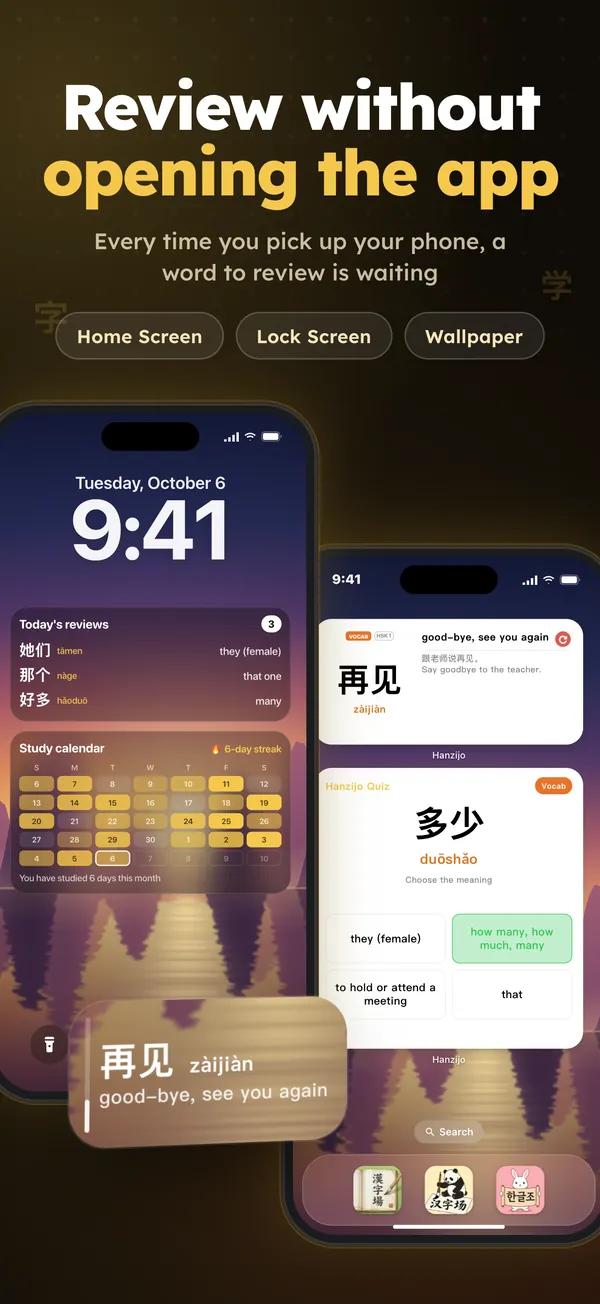
- Widgets: Hanzijo · Today (small, medium), Hanzijo Lock Screen (rectangular, inline) and Hanzijo Quiz (large). They show the characters, words and grammar from your own reviews, need iOS 17 or later and are part of the free plan.
- What it is: Hanzijo: Learn Chinese HSK 1-9 on the App Store, a Chinese learning app for HSK 1 to 9.
- Devices: iPhone and iPad with iOS 16 or later; the widgets need iOS 17 or later. There is no Android version at the moment.
- Price: Free to download. Premium is $5.99 a month, $39.99 a year or $149.99 once on the US App Store (prices vary by country), and one Premium account also unlocks Kanjijo and Hanguljo.
- Free plan: Free users get one new lesson a day, daily reviews, the widgets, the camera scanner, lessons from a pasted video link, the first conversation topic of each level and the first two dictation lessons of each level.
- Content: 3,088 characters, 10,940 words, 558 grammar points, 502 lessons, 266 conversations and 144 dictation lessons, HSK 1 to 9.
Facts checked on (app version 2.0.10).
Characters, words and grammar, in turn
Hanzijo’s widgets work through everything you have studied in the app: single characters, the words built from them and the grammar patterns of your lessons. They go through the whole list in turn, so a character from your first week returns as surely as yesterday’s new word. If you would rather see only one kind, the widget settings let you pick characters, words or grammar.
Pinyin with tone marks
Every item comes with its pinyin, written with tone marks, as in xuéxí, next to its meaning. The pinyin is printed in one colour rather than a colour for each tone, so the marks themselves carry the tones. Saying the item aloud with the right tones before your eyes reach the meaning is the habit worth building.
More room on the medium size
The small Today widget shows the item with its pinyin, its meaning, its HSK level and a label for character, word or grammar. The medium size adds a second layer: the memory tip for a character, or an example sentence with its translation for a word or a grammar pattern. On the Lock Screen you get a rectangle with the character or word, its pinyin and its meaning next to a memory-level bar, and a one-line style that fits all three into the date line.
Answer without opening the app
The large Quiz widget asks a four-option question about a character, word or grammar pattern, or asks you to tap characters in order to build a sentence. Questions are drawn first from the items due for review and, when nothing is due, from items you have already learned. A set holds up to 12 questions, and the answers feed into your reviews when you next open Hanzijo.
Setting it up on an iPhone
The widgets are added through iOS itself. For the Home Screen, press and hold an empty spot until the icons start to move, tap Edit, then Add Widget, search for Hanzijo and swipe to the size you want before adding it. For the Lock Screen, press and hold the Lock Screen, tap Customize, open the widget area under the clock and choose Hanzijo’s rectangle; the one-line style belongs to the date line above the clock.
Back in Hanzijo, Settings and then Widget settings let you choose mixed content or only characters, words or grammar, decide what the Quiz widget asks about and turn on dark mode for the widgets. A new choice shows up at the next refresh, and the app’s Settings also has a short illustrated guide to adding widgets.
Why characters suit a glance
A character is small enough to take in at a glance and rich enough to test you on its shape, its sound and its meaning. When the Lock Screen shows 题, try to say tí before you read the pinyin, and think of a word that uses it, such as 问题, before you read the meaning. Those two seconds turn an idle check of the phone into a small act of recall.
The widget can also help with characters that look alike. Meeting 已 (yǐ, already) and 己 (jǐ, self) on different days, each with its own pinyin and meaning, gives each one its own moment instead of one confusing look at both side by side.
Widget, wallpaper or both
For a fixed set of characters, the free Chinese lock screen wallpaper maker on this site turns characters, pinyin and meanings you choose into an image. An image works on any phone, Android included, but it stays the same until you replace it. The Hanzijo widget runs on iOS 17 and newer and follows your own progress instead. Nothing stops you from using both: a wallpaper with the week’s hardest characters, and the widget for everything else.
Where the widget stops
The widget shows; it does not teach. New characters come from the lessons, where each one has its stroke order, its audio and its memory tip, and the real review happens in the app’s daily session, which spaces every item over seven memory stages. The widget’s job is to keep those items in front of you between sessions.
A routine with the widgets
- Finish a Hanzijo lesson so the widgets have characters to show.
- Put the rectangle on your Lock Screen and say each character’s pinyin before you read it.
- Keep the Quiz widget on a Home Screen page and answer a question when you unlock.
- Open the app once a day for the full review and the next lesson.
Good to know
- Hanzijo runs on iPhone and iPad with iOS 16 or later; there is no Android version at the moment.
- For the widgets, the iPhone has to run iOS 17 or a later version.
- No Premium is needed: the free plan includes all three widgets.
- Pinyin is shown with tone marks in one colour; the tones do not get colours of their own.
- The widgets only show items you have studied, so a fresh install asks you to finish a lesson first.
Frequently asked questions
Is there a Chinese character widget for Android?
Not from Hanzijo, which is only on iPhone and iPad. On Android you can make a lock screen image with characters, pinyin and meanings with the free Chinese wallpaper maker on this site.
Does the widget show pinyin with tones?
Yes. Pinyin is shown with tone marks, for example xuéxí, in one colour rather than a different colour for each tone.
Can I choose characters only?
Yes. In Hanzijo’s Settings, under Widget settings, choose Hanzi for characters only, or Vocabulary, Grammar or Mixed. Quiz questions follow a separate setting.
Does the widget update without opening Hanzijo?
Yes. It changes item roughly every quarter of an hour, or at once when you tap the circular arrow. Opening the app adds the items you have just learned and counts your quiz answers.
Which iPhones are supported?
Any iPhone on iOS 17 or later can use the widgets; the app itself needs iOS 16 or later.
Sources
- How to add and edit widgets on your iPhone, Apple Support
- Create a custom iPhone Lock Screen, iPhone User Guide, Apple Support
- Pinyin, Wikipedia: tone marks
Try Hanzijo free
Free to download on iPhone. One Premium account unlocks Kanjijo, Hanzijo and Hanguljo.
Download on theApp Store On a computer?Scan with your iPhone